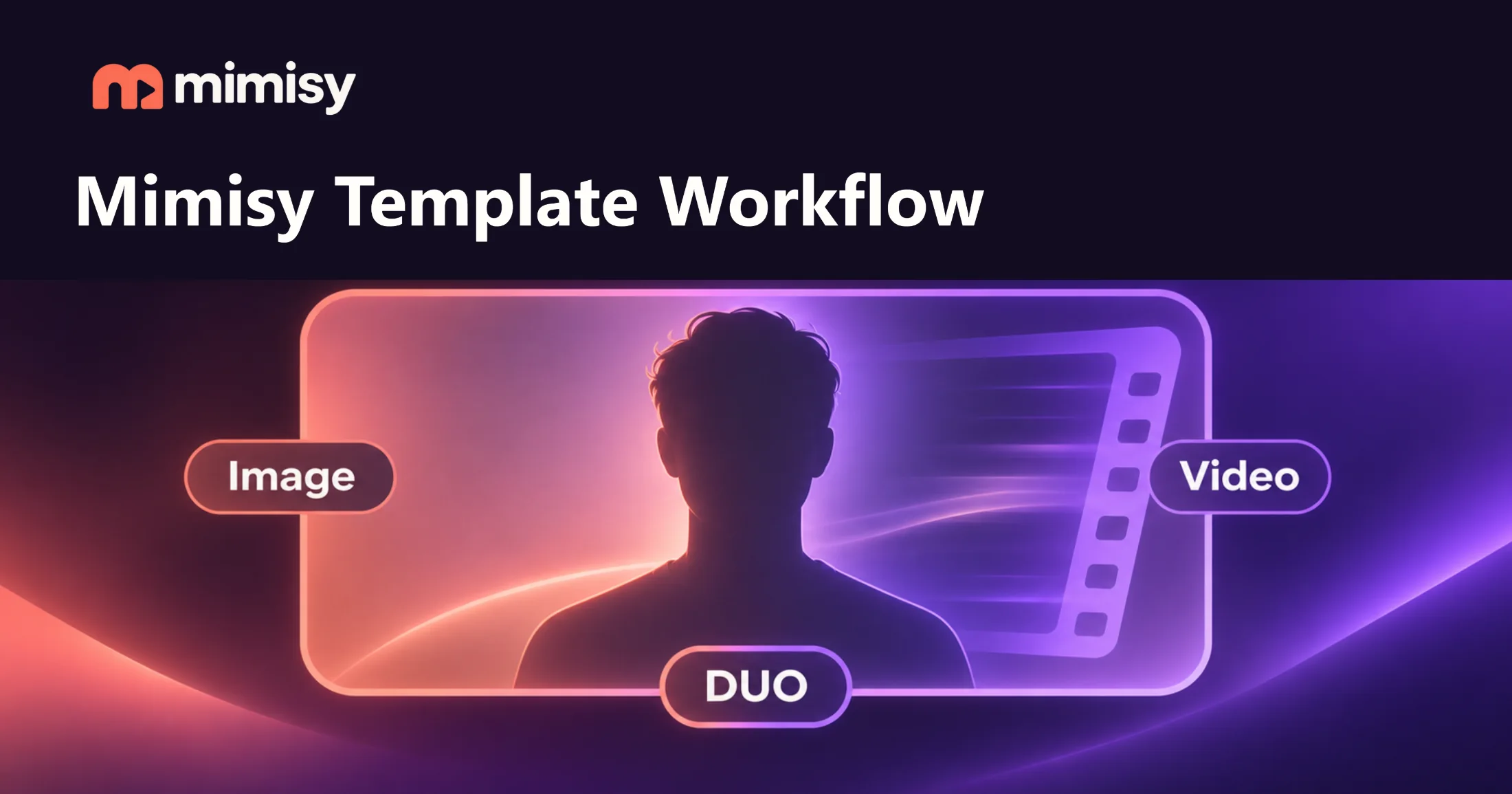
A reliable Mimisy workflow starts with the live previews. Choose an effect that suits your source photo and intended output, upload one or two suitable adult photos, review the available settings and current credit quote, and either keep the preset or add one short optional direction. After generation, inspect the result in My collection and change one variable for the next attempt.
Changing the template, photo, duration, and prompt at the same time makes it impossible to tell what helped. Controlled changes make every generation useful, including the ones you decide not to keep.
The complete workflow in eight steps
- Browse the live previews. Focus on the demonstrated behavior rather than the template name. Previews are available before sign-in.
- Choose the type of effect. Decide whether you want motion, a still-image transformation, or a supported two-photo composition.
- Match the preview to your source. Compare the subject’s pose, camera angle, crop, lighting, and visible body area with the sample.
- Upload the required adult photo or photos. A standard template may need one source, while a supported DUO effect displays two separate upload slots.
- Review the template’s available settings. Check the displayed duration and any other options, then read the current credit quote before submitting.
- Keep the preset or add one short direction. The prompt is optional because the template already defines the main behavior.
- Generate and inspect the complete result. Open the finished job in My collection and assess it against your intended use.
- Change one variable. Try a different crop, one concise direction, another offered duration, or a better-matched template.
For a shorter introduction, the first-video guide covers the path from browsing templates to opening a result in My collection.
Treat each template as a behavior preset
A Mimisy template packages an intended effect or behavior. Its preview demonstrates the general creative direction, such as a type of motion, visual transformation, framing relationship, or two-subject composition. The sample does not guarantee an identical result.
Your upload supplies its own subject, pose, facial visibility, lighting, crop, camera angle, and background. These details, along with the selected settings and any optional direction, can influence the output. A preview built around a centered, front-facing subject may be a poor match for a tightly cropped side profile, even when the source is otherwise attractive.
Use the preview as a compatibility check:
- Does the source show the parts of the subject that the effect appears to use?
- Is the pose reasonably compatible with the demonstrated behavior?
- Is there enough room around the subject for the intended motion or transformation?
- Is there one clear focal subject, or the correct two people for a supported DUO effect?
- Do you want a moving clip or a transformed still image?
Choosing by visible behavior is more dependable than relying on the template title or expecting your upload to reproduce the sample composition exactly.
Choose the right template lane
Mimisy groups its effects into three practical lanes. Pick the lane before refining prompts or comparing durations.
| Lane | Use it when you want | Required input to check | Main selection question |
|---|---|---|---|
| Image to video | Motion added to a source image | The upload fields shown by the live template | Does the previewed movement suit the source pose and crop? |
| Image effects | A transformed still image | The source requested by the effect | Does the visual treatment suit the subject and intended final image? |
| DUO/two-photo effects | A supported composition using two separate photos | Two clearly labeled upload slots | Are the two adult photos suitable for their intended slots and roles? |
Image-to-video effects
Choose image-to-video templates when you need a moving clip. Motion can reveal source-photo weaknesses that are less noticeable in a still image, so check facial clarity, pose, crop, and how much of the subject is visible.
Match the source to the previewed action. An effect based on body movement may receive too little information from a close facial crop. For a face-focused effect, a distant full-scene photo may make the subject unnecessarily difficult to identify.
Still-image effects
Choose image effects when you want a visual transformation that remains a still image. This lane suits concepts based mainly on appearance or styling rather than movement.
A still-image effect may have different controls and output behavior from a video template. Open the live card and work from the inputs and options it displays.
Supported DUO effects
Choose DUO or two-photo effects when the selected template displays two required upload slots. A title or theme that suggests two people is not enough; confirm that the fields are present.
Prepare two separate adult photos and place each one in the intended slot. Avoid substituting a crowded group image for distinct sources. Clear separation reduces ambiguity about which person belongs in each role. Follow the slot labels, since reversing the photos may change the intended composition.
Input counts and available options can vary by effect. Use the selected live template as the guide.
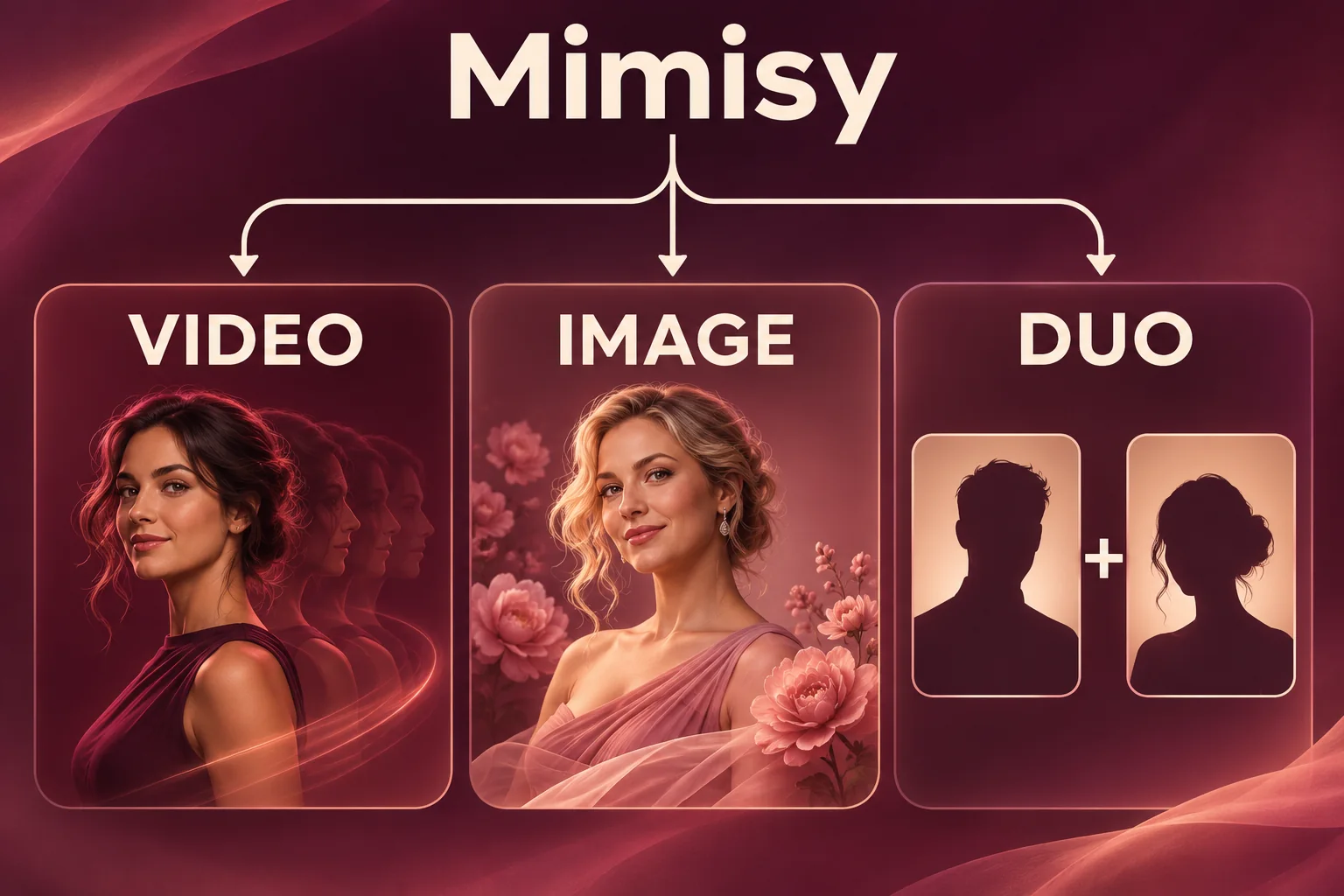
Choose the Mimisy lane that matches the intended output: motion video, a transformed still image, or a supported two-photo DUO effect.
Check the source photo before spending credits
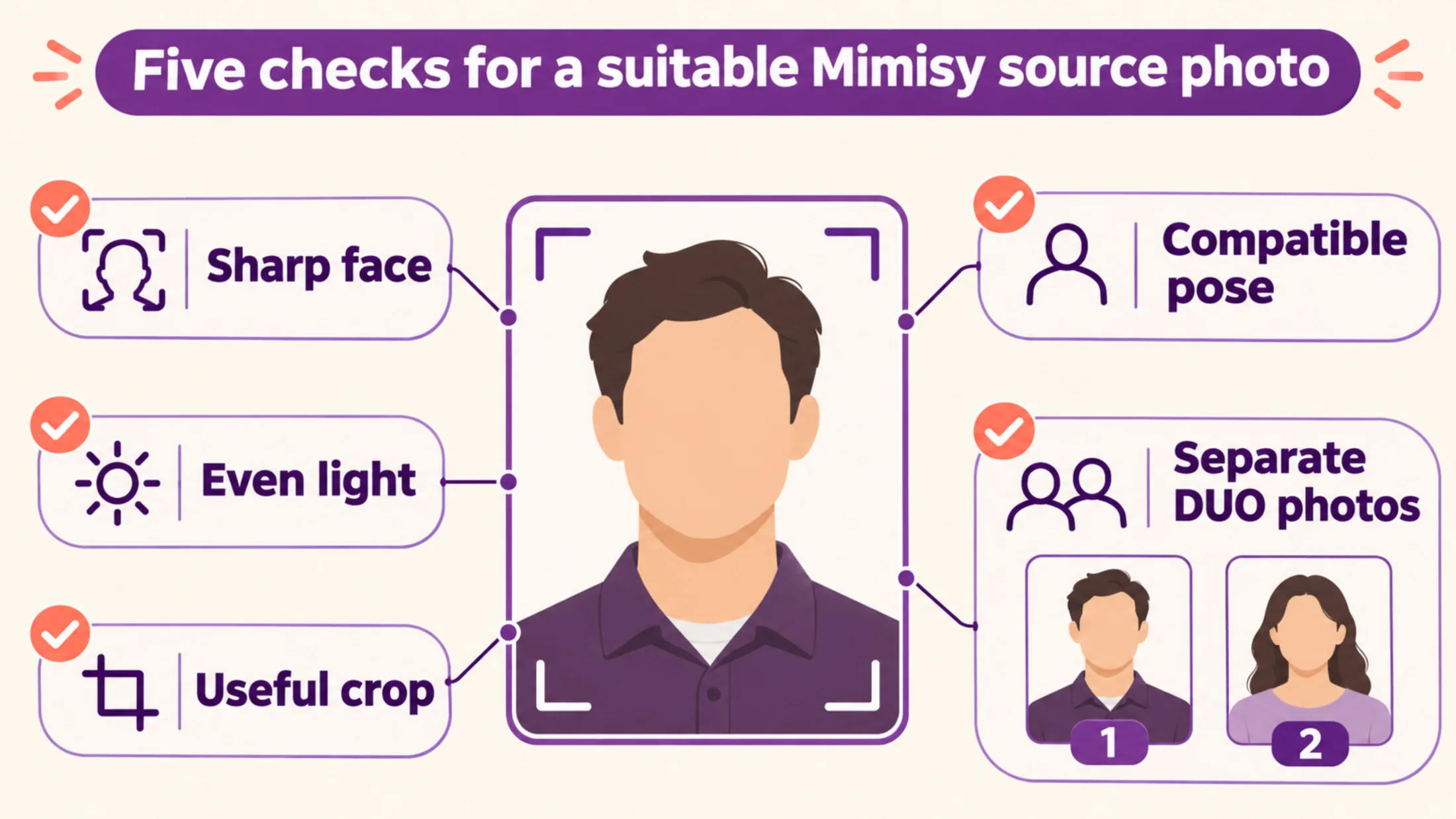
A strong source gives the selected effect clearer visual information. Check these details before uploading:
- Sharp, unobstructed face: Use a photo in which the adult subject is recognizable. Heavy blur, a very small face, aggressive compression, or hair and objects covering key features add uncertainty.
- Sufficient lighting: Choose reasonably even light that reveals facial structure and the relevant parts of the subject. Strong shadows and blown-out highlights can conceal useful detail.
- Suitable crop: Include the visual area the effect appears to need. Full-body behavior generally requires more of the body than a face-focused transformation.
- Compatible pose and angle: Compare the source with the preview. An extreme side angle may behave less predictably in a front-facing effect. A seated or close-up source may be a poor fit for behavior designed around a standing figure.
- Clear focal subject: Busy scenes and overlapping people can make the intended subject harder to determine.
- Separate DUO photos: For a supported two-photo template, choose one clear adult source for each slot and preserve the displayed order.
When possible, use the original photo instead of a compressed screenshot. The better-source-photo guide provides additional preparation advice.
Move from a live preview to My collection
Start by shortlisting previews whose behavior fits your idea. This is the first input-quality decision: a modest source paired with a compatible effect can be more useful than an impressive photo paired with unrelated behavior.
Open a shortlisted template and confirm its requirements. Upload the requested photo or photos, then inspect the controls that appear. Some live cards offer duration choices, but templates do not necessarily share the same durations or settings. Compare durations only when the selected card offers that option.
Read the displayed credit quote before submitting. If two configurations have different costs, consider whether the added option contributes to the intended use.
For the first attempt, leave the optional direction blank when the preset already represents your idea. Generate in the App, open the finished result in My collection, and review the complete output rather than judging it from the opening moment or a single frame.
Use specific evaluation questions:
- Is the adult subject clear and recognizable enough for the intended use?
- Does the effect move or transform the correct visual elements?
- Does the crop support the behavior?
- In a DUO result, do the two sources occupy the intended roles?
- Is the result ready to publish, useful after ordinary editing, or unsuitable?
Keep that final classification consistent so it can support a meaningful keeper rate later.
Start with the preset, then test an optional direction
The selected template already supplies the main behavior, so a preset-only generation provides a clean baseline. The prompt field can remain empty.
After reviewing the baseline, add one short direction if you can identify a specific adjustment. It might address mood, pacing, movement, expression, or camera feel. For example:
Relaxed expression and gentler pacing.
This wording works because the requested change is easy to identify. Keep the template, source, and displayed settings unchanged when comparing the prompted result with the baseline.
Avoid packing several competing instructions into one prompt. Simultaneous changes to mood, action, framing, pace, lighting, and camera behavior make the outcome difficult to diagnose. Prompt wording also cannot add an option the template does not provide or turn one effect into a different product feature.
The optional-prompt guide offers more examples of when to keep the preset and when to add a direction.
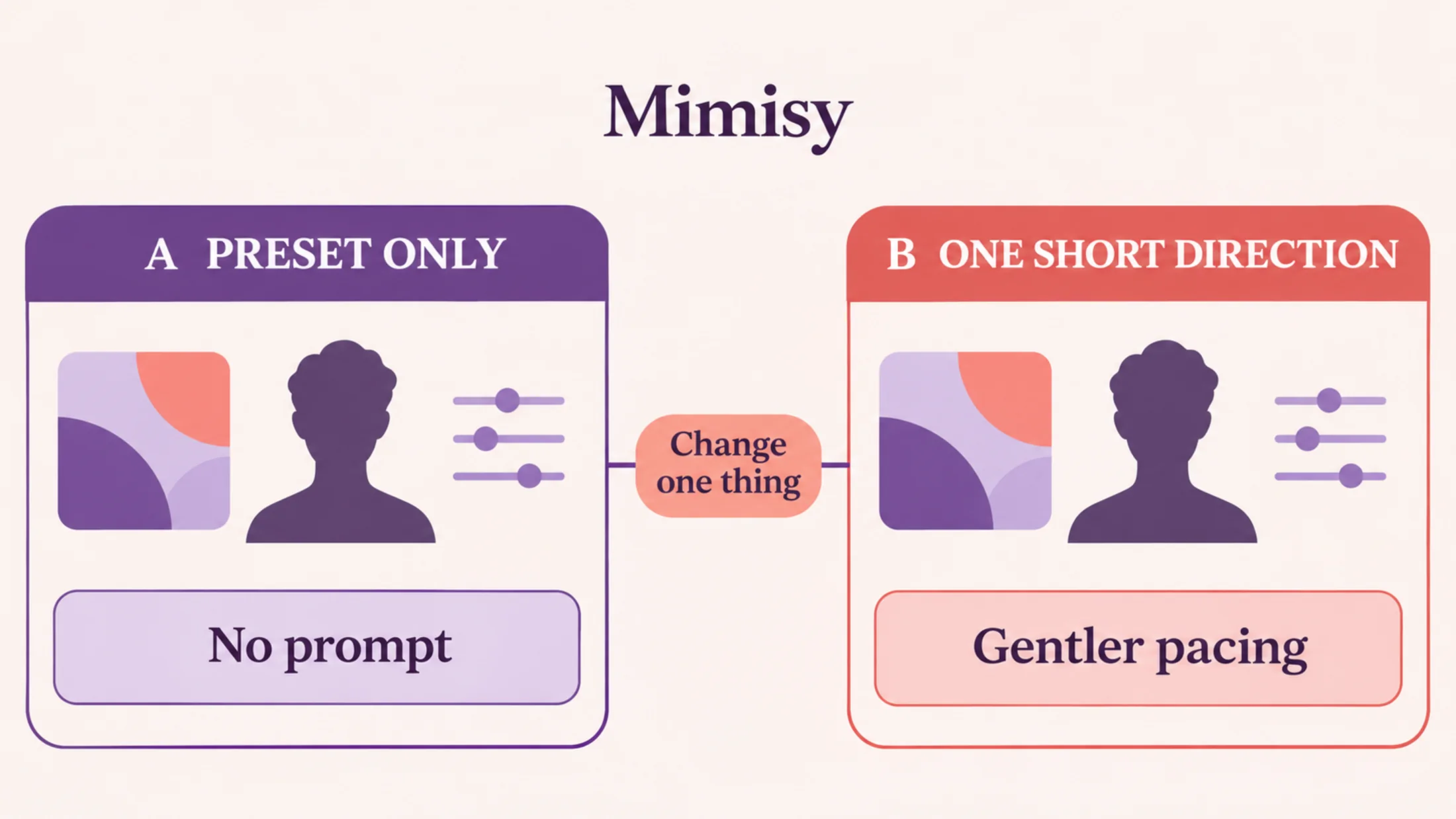
Compare a preset-only baseline with one concise direction while keeping the template, source photo, and displayed settings unchanged.
Run a controlled five-part test
A short sequence of related tests produces clearer information than unrelated attempts:
- Run a preset-only baseline. Use your strongest compatible source and leave the optional direction blank.
- Test one short direction. Keep the template, source, and displayed options unchanged.
- Compare durations where available. Return to the baseline and change only the duration offered by that template.
- Record useful combinations. Save the template and source identifiers associated with results that meet your purpose.
- Continue one variable at a time. Change the crop, source, prompt, duration, or template individually.
A small log is sufficient:
| Template | Source | Displayed option | Direction | Credit quote | Result note |
|---|---|---|---|---|---|
| Template name | Portrait A | Selected offered duration | None | Quote shown before generation | Clear subject; pacing too strong |
| Same template | Portrait A | Same duration | “Gentler pacing” | Current displayed quote | Better fit; keep |
Use filenames or stable source identifiers instead of vague labels such as “new photo.” The record only needs enough detail to reproduce a successful combination.
Budget credits around keeper rate
Attempt count measures how often you generated. Keeper rate measures the share of results that are useful for the intended purpose. A keeper might be ready to publish, suitable for a larger edit, or useful within a planned collection.
Define that standard before testing. Otherwise, it is easy to lower the threshold after credits have already been spent.
A template-and-source pairing that repeatedly produces useful material may justify further controlled tests. When repeated attempts remain unsuitable after trying a better crop or a more compatible source, further prompt variations may offer little value. Switching templates could provide more useful information.
Before each job:
- Read the current credit quote.
- Decide which question the attempt will test.
- Record the configuration.
- Determine whether the result qualifies as a keeper.
- Spend the next credits on the variable most likely to answer the remaining question.
Mimisy uses credits, so plan around the displayed quote rather than assuming unlimited retries. The credits and payments guide explains generation quotes, while the unlimited-generation article explains why quote-based planning is more useful than an “unlimited” assumption. Check current pricing when comparing purchase options instead of relying on an older price from another source.
Diagnose the result before the next attempt
If the subject looks unclear, inspect the source for facial sharpness, lighting, obstruction, crop, and subject size. A longer prompt cannot restore visual information that the upload fails to show clearly.
If the motion or transformation feels mismatched, compare the source pose with the template preview. Choosing a more compatible effect may be more effective than repeatedly asking the same preset to produce different behavior.
If a DUO result is difficult to control, confirm that the live template supports two inputs, each slot contains a separate clear adult photo, and the sources follow the displayed slot order.
When several iterations produce no clear lesson, return to the preset-only baseline. Reuse the same source and displayed options, then change one factor. This removes the uncertainty introduced by earlier multi-variable experiments.
Creators building a larger production system can use these records to maintain consistent source libraries, repeatable series, and cost plans. Mimisy’s AI creator business guide extends this workflow without treating an individual generation as a revenue promise.
Learn from examples without copying them literally
The official @Mimisy_AI account on X shares Mimisy template posts, examples, and new drops. Use them to discover effects and understand possible creative directions, then compare each live template with your own source and goal.
For product, privacy, account, and service information, review Mimisy’s trust page.
Choose one of the three template lanes, find a preview that suits a strong adult source photo, and run a preset-only baseline. Inspect the complete result in My collection, record what happened, and change one variable for the next attempt.
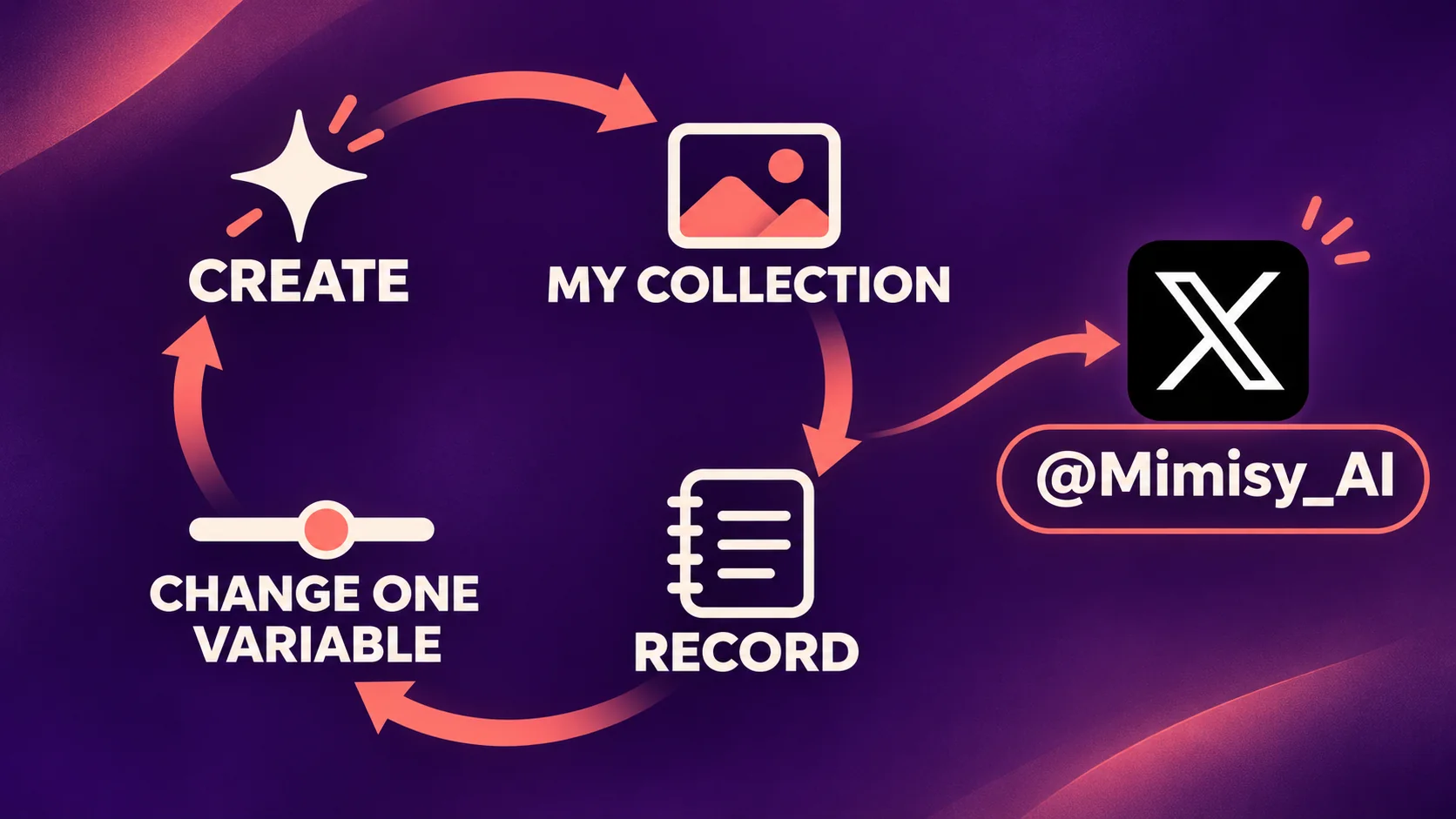
Review each Mimisy result in My collection, record what happened, and change one variable after consulting examples from @Mimisy_AI.
Find an effect for your next idea.
Browse the actual previews, choose your settings, and review the credit quote before you create.
Explore effects →